How to prepare a logo for print
The biggest time-waster in the print process is the wrong logo file: a small, blurry logo, one left on a white background or taken from a screenshot is cleaned first and placed afterwards. If you send the right file from the start, the proof is usually approved in a single round. This guide explains which file works and how to check it yourself.
Updated:
Vector or pixel?
A vector file (SVG, PDF, AI, EPS) describes the logo with lines; it stays sharp no matter how much it is enlarged. A pixel file (PNG, JPG, WEBP) is made of dots and blurs when enlarged. For print, the first choice is always vector. If a designer drew your logo, they have a vector version; ask for it.
If there is no vector, a high-resolution PNG is the second best choice. Enlarging a small PNG adds no resolution; the original file itself must be large. A small logo downloaded from your website or social media is not enough for print.
Background: transparent or white?
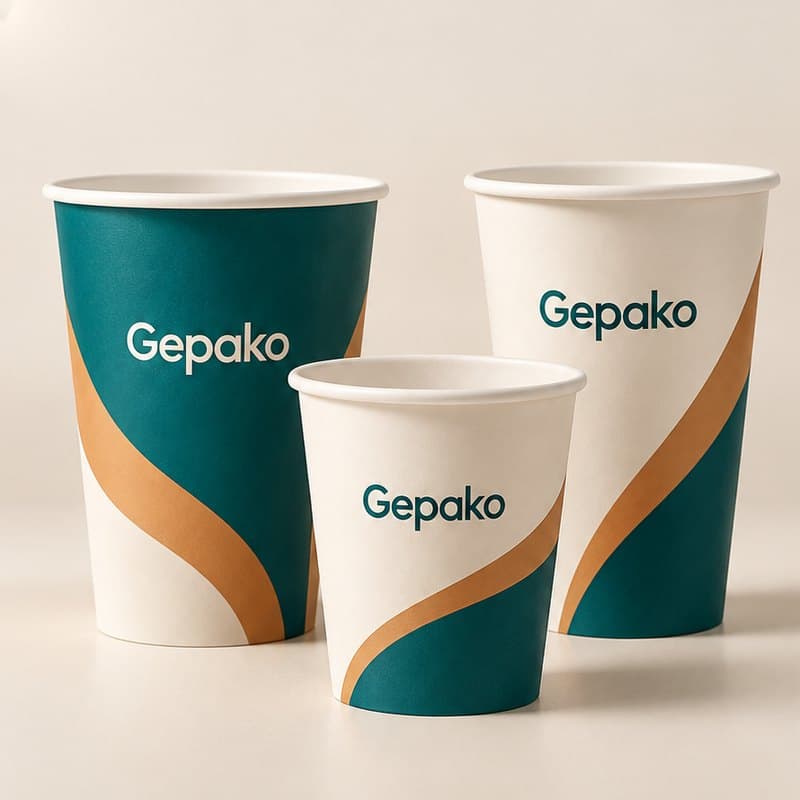
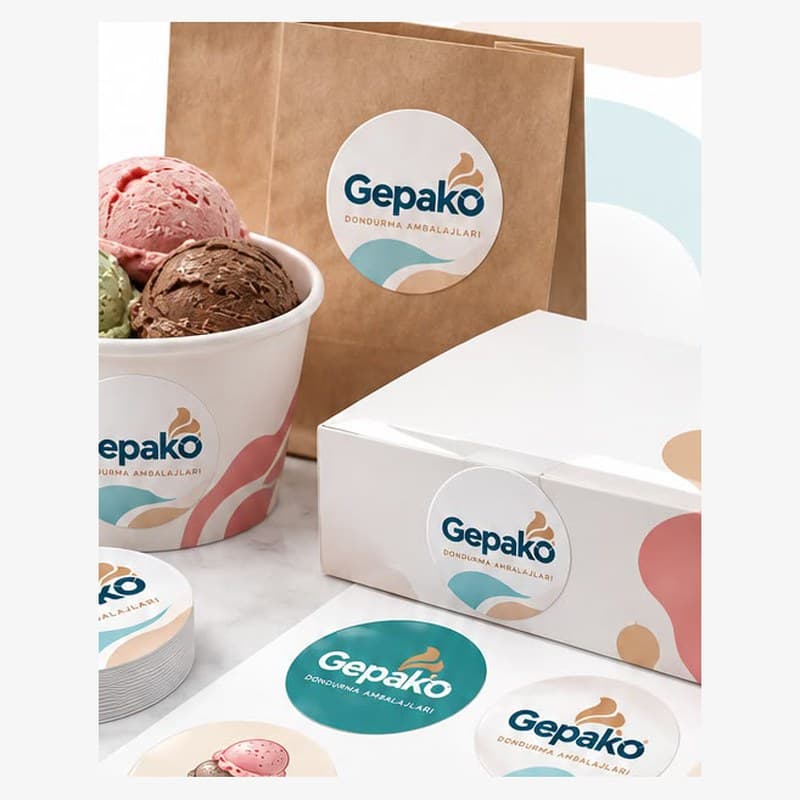
If the logo will be printed on paper colour or on a coloured background, you need a transparent PNG or a vector. A logo that arrives inside a white square shows up as a white box on a coloured cup. Gepako's logo clean-up step removes the white background, makes the inside of letters transparent and sharpens the edges; but if the logo arrives transparent from the start, this step is unnecessary and the result is cleaner.
If you keep the background on purpose, for instance because your logo is a badge or label, write this in the request note and the background is left as it is.
Colour information
Screen colours and print colours are not the same. If your brand has colour codes (HEX, CMYK or Pantone), send them with the logo; they are written on the proof and the printed job is checked against that reference. If you have no codes, our team extracts the colours from the logo and shows them to you on the proof.
A single-colour logo is the safest choice in print; it can be reversed, white on a dark background or dark on a light one. Multicolour and gradient logos are printed too, but fine gradients can disappear on small surfaces, and we evaluate that together on the proof.
How to check it yourself
Enlarge the file on screen: if the edges look stepped or blurry, the resolution is low. If there is a white box around the logo, the background is not transparent. If the logo contains very small text, it will not be readable on small surfaces such as the cone tip or a sticker; have a simplified version prepared.
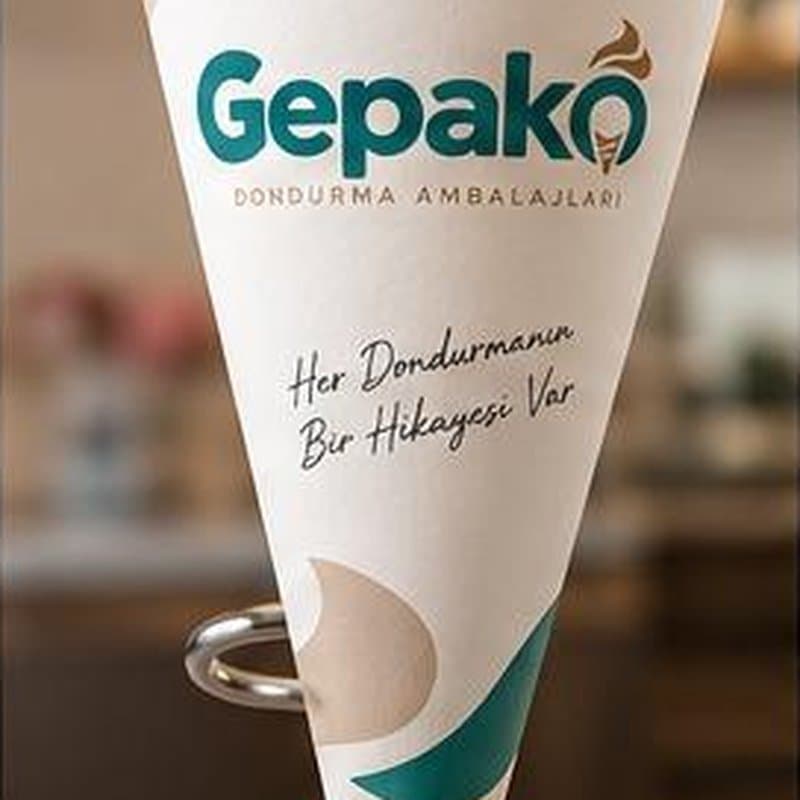
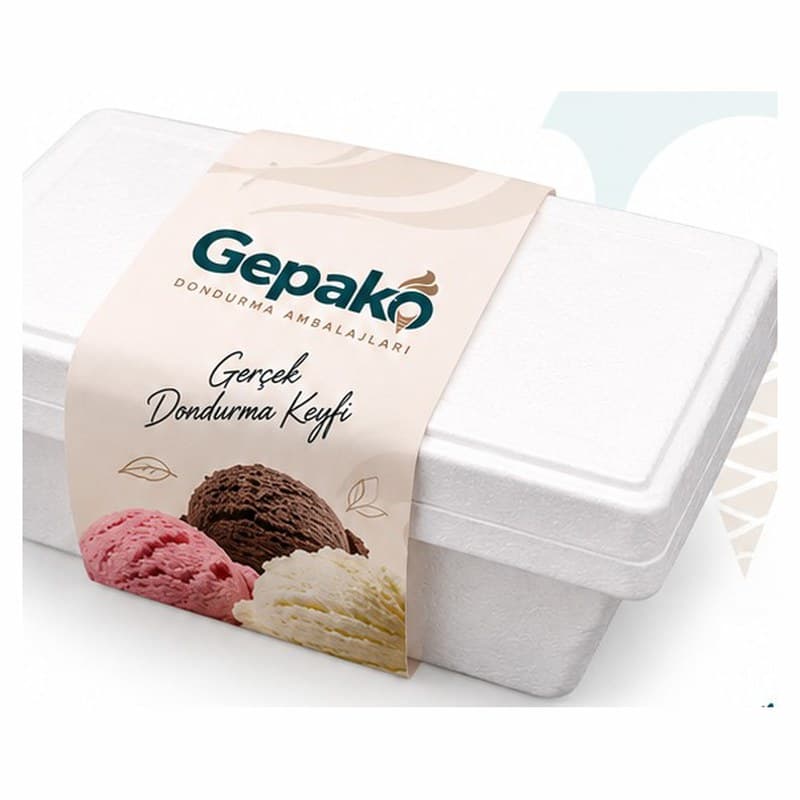
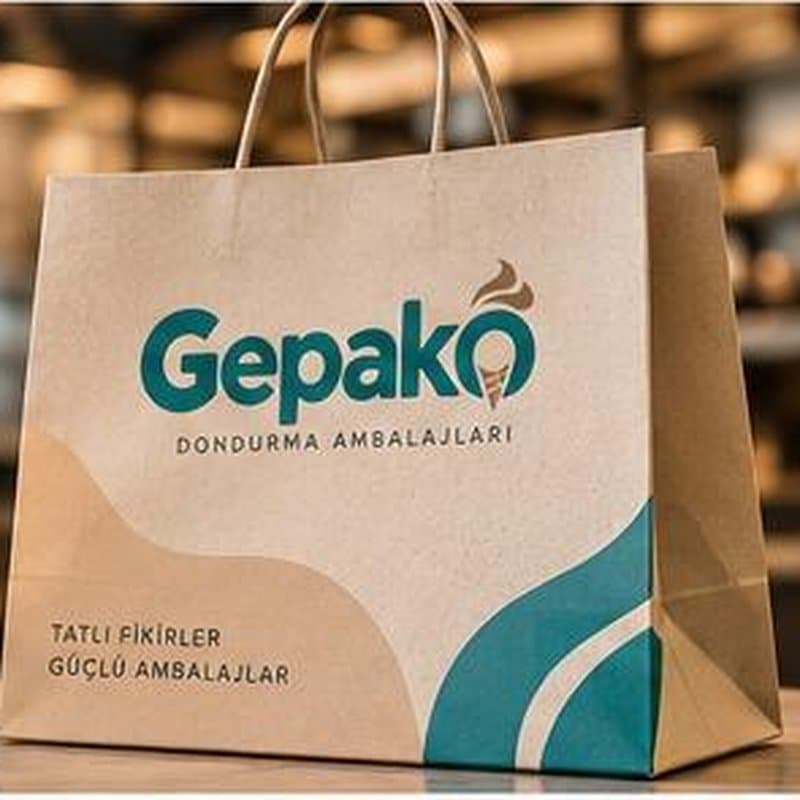
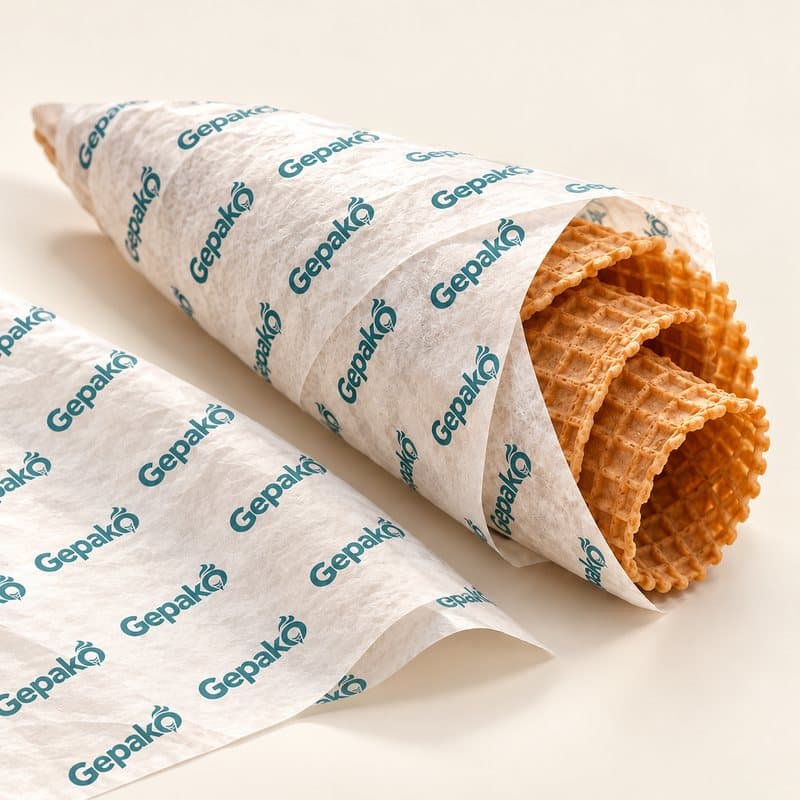
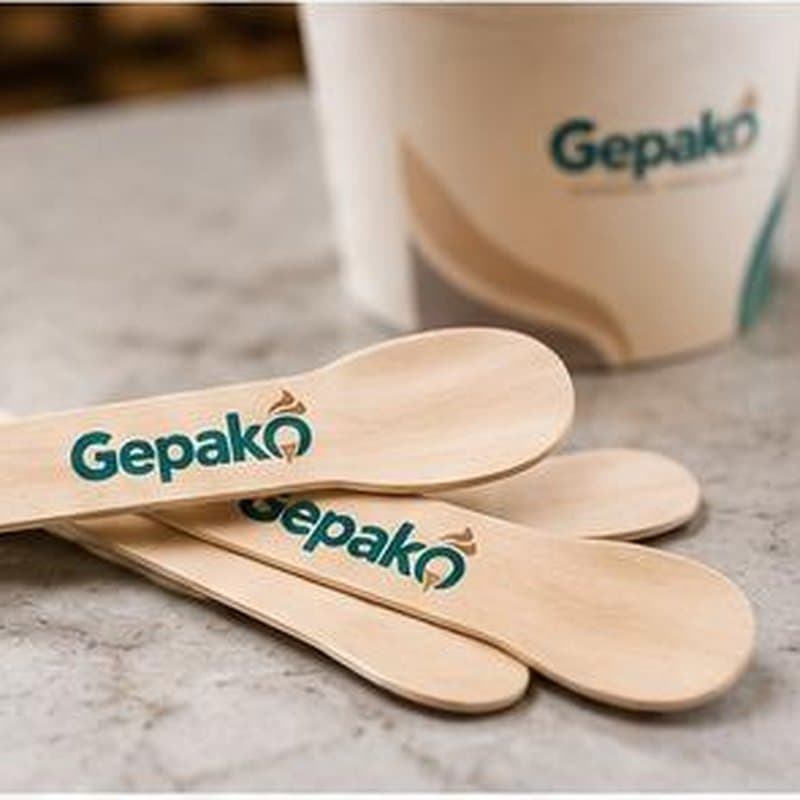
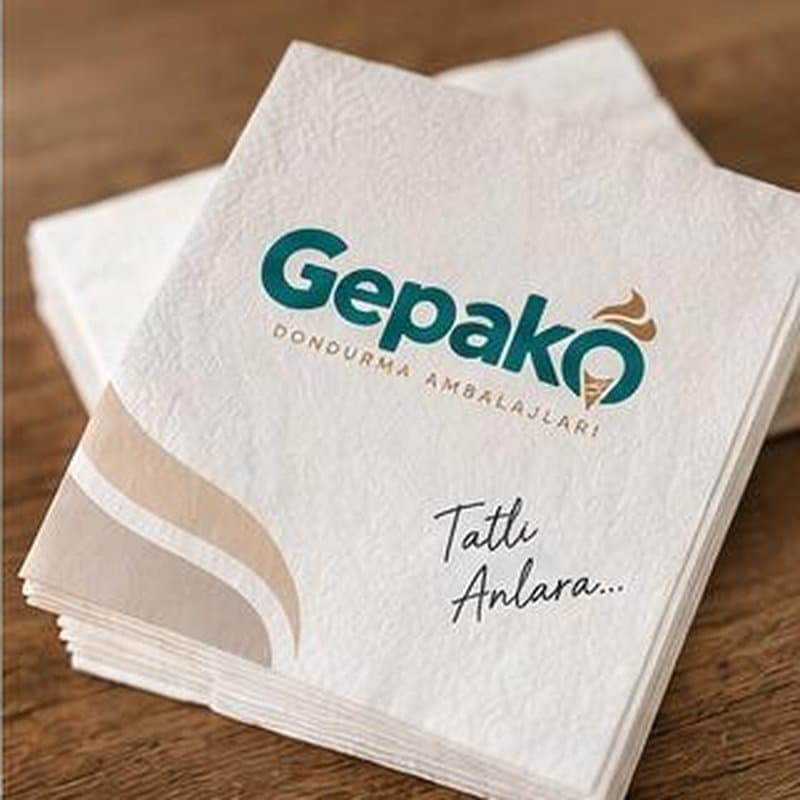
The easiest check is the See Your Logo page: upload your logo and see it in 3D on the cone, cup, tub sleeve, bag and napkin. The logo never leaves your device; it is attached to your request only when you ask for a quote. You send the products you like to a quote from the same basket.
When sending
Upload your logo in the delivery and note step of the Quick Quote form and write your colour codes in the note. No designer? Do not worry: send your logo, our design team prepares it for print, the proof arrives on your tracking page and you approve it.
Request a quote
List the products and approximate quantities; our sales team replies with a carton-based price.
Get a Quick Quote